Part 2 - Editing Git History
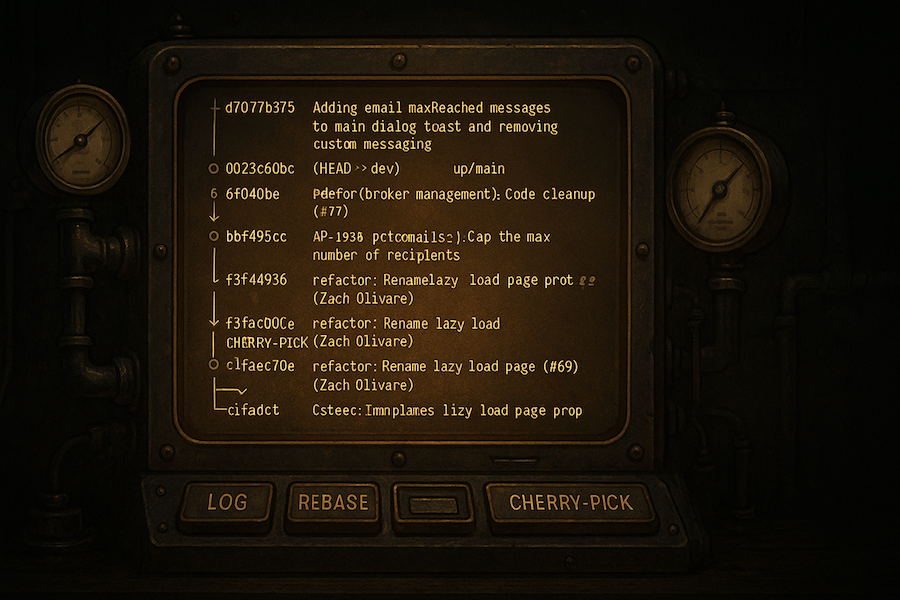
Series: How to Suck Less at Git
Part 2 of 3
In this post we’ll look at how to use the most essential tools that should be in every developer’s git toolbox. I assume only that the reader is familiar with git basics like status and commit. With these tools in hand, you’ll never even get close to releasing the wrong code again, you’ll be able to cherry-pick commits to release like an absolute pro.
The idea of rewriting history in git tends to scare people. People get scared partly because they don’t understand what they’re doing, and partly because they’re not looking at the git graph; so they’re just praying that they didn’t break anything 🙏.
By checking the graph and running the appropriate diff commands, you can edit history with the confidence of knowing that you did exactly the right thing. When done correctly there is no mystery, no uncertainty, in this process.
Cherry picking just means copying a commit from one branch to another. This creates entirely new commit objects with new hashes (thus modifying history).
git cherry-pick <commit-hash>Rebasing is essentially “smart cherry picking”. Like cherry-pick, it copies commits from one branch to another, but it also makes a best guess about which commits need to be moved.
It rewrites the history of your branch by pretending that it started from a different place, a different base. This makes your branch look as if you had pulled the latest changes before starting your work, even if you actually didn’t. It is an alternative to git merge that maintains a clean commit history.
- Rebase determines which commits to move by finding the first common ancestor of the two branches you specify
- Then it cherry-picks (re-applies/re-plays) each one of those commits, one after another
- Then it will continue automatically unless there is a merge conflict
After modifying history, you’re going to want to run some quick checks to ensure that your rebase did exactly what you wanted it to do.
The first step is of course, git ls. You should look at the new structure of your commits to ensure that it looks as you intended.
The second step should be to run a git diff to compare the state of your repository before and after your rebase.
git diff <originalCommit> <newCommit>git diff origin/featureBranch featureBranchgit diff originalBranch headgit range-diff originalMain...origin/featureBranch main...featureBranch